
How to Trim Audio with 7 Tools for Various Devices

How to trim MP3 files? If you also have similar questions, then you've come to the right place. This post introduces 7 tools and how to use them. No matter which device you are using, you can find the appropriate method in this post to complete the task quickly. After conducting thorough tests, we have provided you with detailed information about each tool, including its features and specific operating methods. Start reading now to find the solution.
Guide List
How to Trim Audio with Professional Effects Easily Audacity: A Professional Audio Tool for Audio Trimming How to Use Built-in iMovie for Trimming Audio on Mac How to Trim Audio During the Playback within VLC A Web-Based Solution to Trimming Audio Online [For iPhone] Audio Trimmer - Music Editor for Free [For Android] An All-in-One App for Audio TrimmingHow to Trim Audio with Professional Effects Easily
When it comes to a one-size-fits-all tool, AnyRec Video Converter is definitely the best choice. You will be surprised to find how perfectly applicable it is to any situation. Whether you are dealing with music, daily conversations, or meeting content, it can efficiently trim the audio files according to your requirements without any loss of quality. Before exporting, you can also customize various parameters and select the output format to ensure that the result best meets your requirements.
Trim audio easily and seamlessly.
A built-in player to hear the trimmed video before saving it.
Allow you to adjust audio volume, and so forth.
Adjust parameters for audio files in formats like MP3, AAC, FLAC, etc.
Secure Download
Secure Download
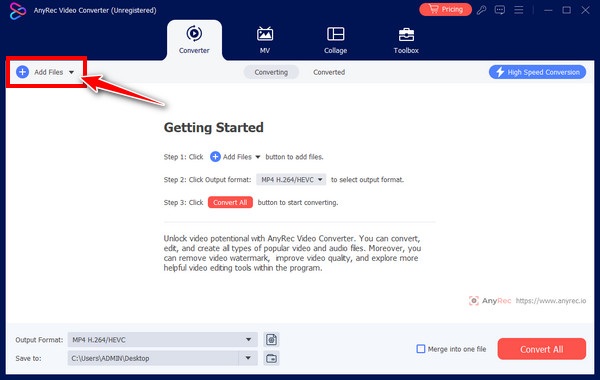
Step 1.Launch AnyRec Video Converter on your device and click the "Add Files" button to import the audio file.
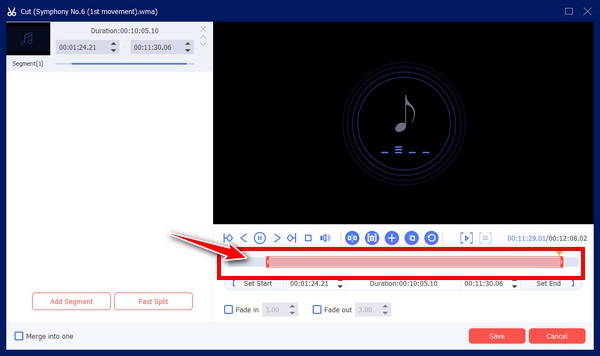
Step 2.After clicking the "Trim" button, a new window will pop up. You can trim the audio the way you want. Once finished, click the "Save" button.
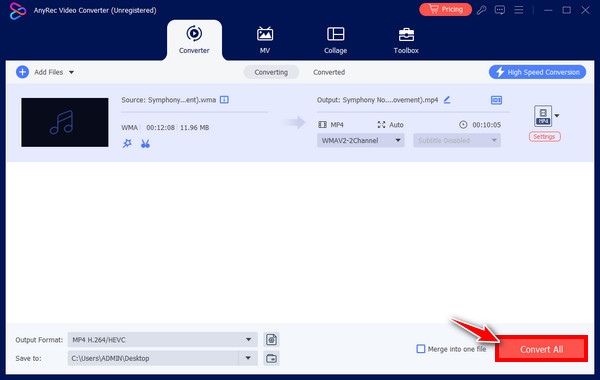
Step 3.Finally, in the main interface, click the "Convert" button to save the trimmed audio file on your device.
Audacity: A Professional Audio Tool for Audio Trimming
For many professional audio professionals, Audacity has always been a reliable MP3 audio editor. As an open-source, free tool, it can assist you with many professional audio processing tasks, such as audio extraction and joining. Although its operation has a very steep learning curve, it poses a significant challenge for beginners. But in fact, if you know how to operate it, it's not that complicated. You can complete this task by following the steps below.
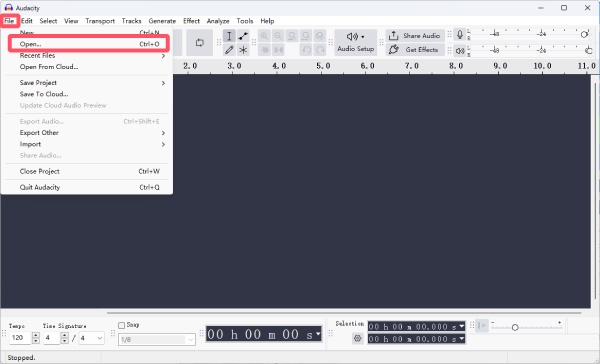
Step 1.Launch Audacity and click the "Open..." button under the "File" tab to import the audio file.
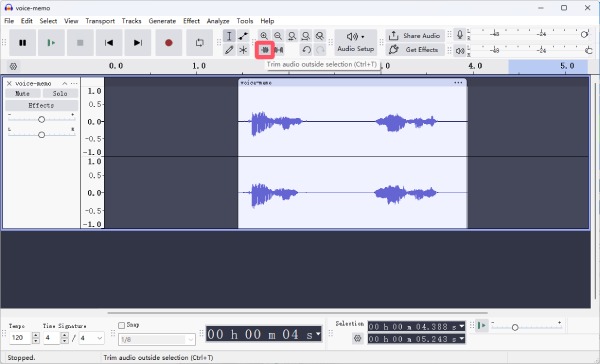
Step 2.To trim the audio file, click and drag to adjust the part you want to keep. Then, click the "Trim audio outside selection" button.
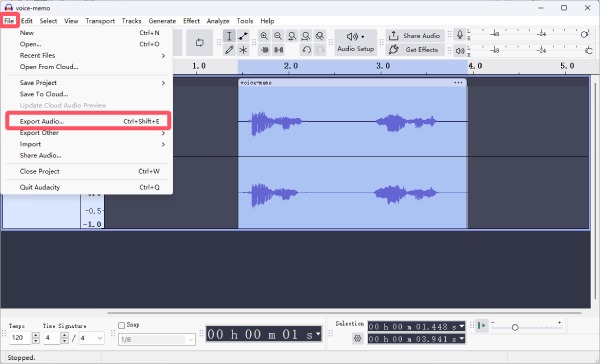
Step 3.Finally, click the "Export Audio..." button under the "File" tab to save the audio file.
How to Use Built-in iMovie for Trimming Audio on Mac
Is there a suitable audio cutter available for Mac? In fact, you don't need to search at all; you can simply find a ready-made answer. All you need to do is use iMovie, a song trimmer that is pre-installed on your Mac. iMovie is completely free and can easily edit various media files. You can quickly trim your audio files by following the steps below.
Step 1.Launch iMovie on your Mac using Spotlight. Import the audio file from the "media library" tab into iMovie to proceed.
Step 2.Drag the audio file into the timeline. Now, you can adjust to select the part you want to keep.
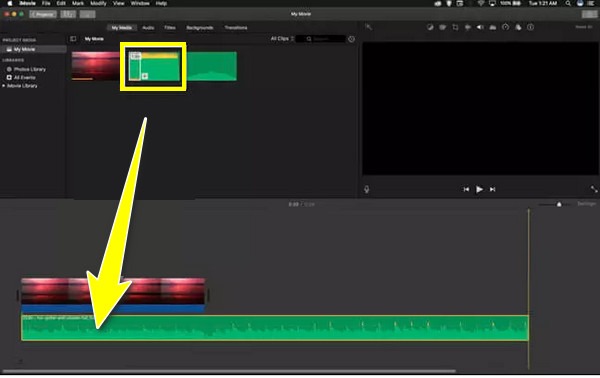
Step 3.You can preview to check the effect. Finally, save the audio file within this MP3 splitter.
How to Trim Audio During the Playback within VLC
For a long time, many film and music enthusiasts have been accustomed to using VLC media player to play the media they watch or listen to daily. As you can see here, you can achieve very simple yet precise control. If you are currently using VLC media player to play audio files, you can use it directly as an MP3 file cutter as well. Although its operation logic is not a direct cut, it can still achieve the same result when using VLC to trim videos or audio.
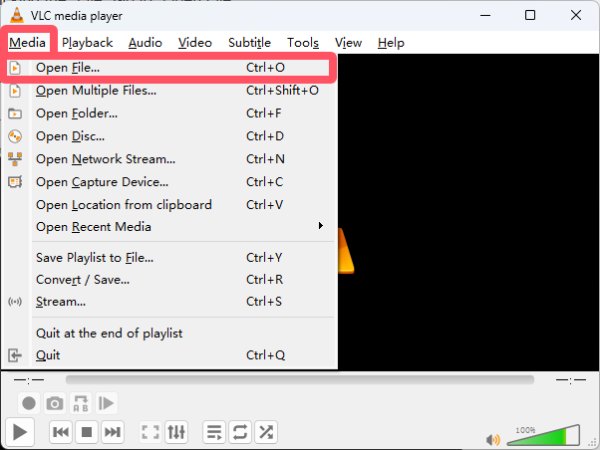
Step 1.Launch VLC media player and click the "Open File..." button under the "Media" tab to import the audio file from your local folder.
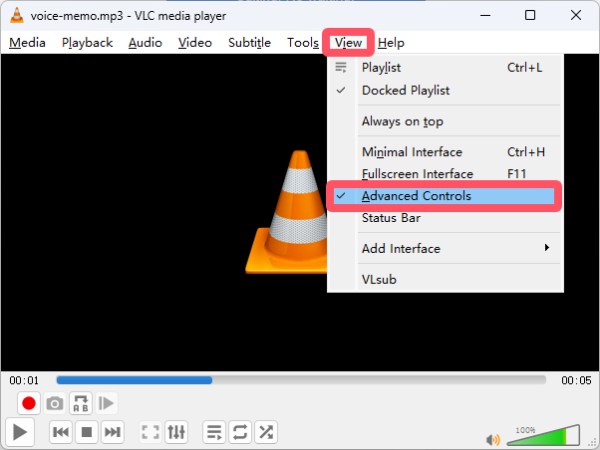
Step 2.To trim an MP3 file, you need to summon the control panel. Click the "Advanced Controls" button under the "View" tab.
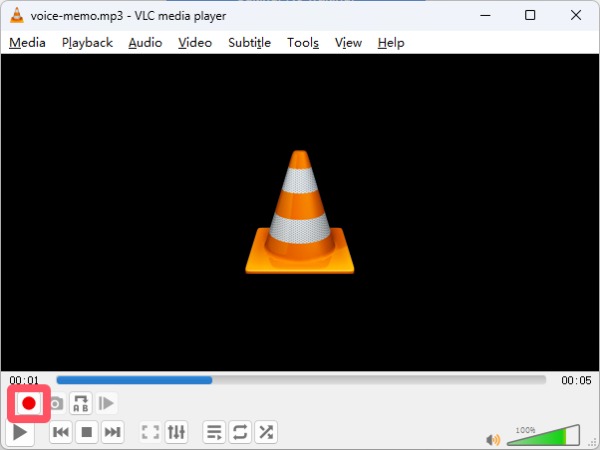
Step 3.In the timeline, click to select the starting point and then click the "Record" button. Once finished, click the "Stop" button.
A Web-Based Solution to Trimming Audio Online
For those users who are looking for an online audio trimmer, you might get confused by the countless options available in search engines. However, most of them either cannot help you complete the task or have many limitations. After testing over a dozen online tools, we found that 123 Online Audio Cutter is the most concise and efficient free online tool. Although this free audio converter lacks advanced editing features, it lets you quickly trim your files without complicated operations.
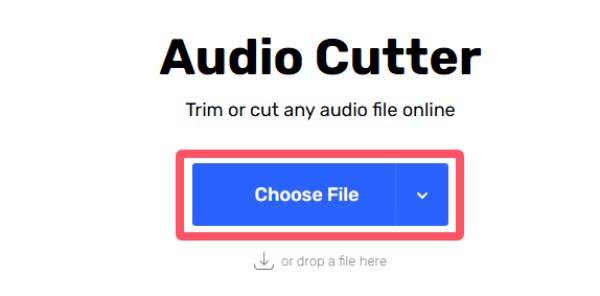
Step 1.Navigate to the official website of 123 Online Audio Cutter and click the "Choose File" button to upload your audio file.
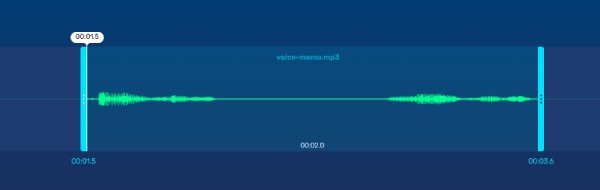
Step 2.Your audio file will be displayed on the timeline. You can click to set the starting and ending points.
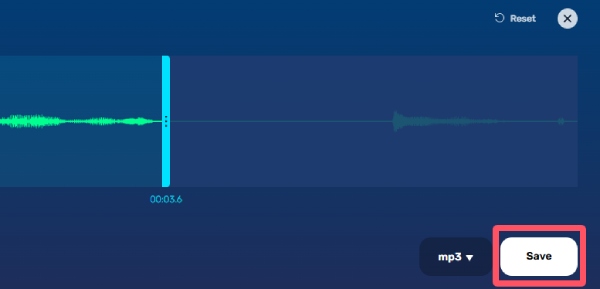
Step 3.After determining the duration, you can click the "Save" button to save the trimmed audio file from this online MP3 trimmer.
[For iPhone] Audio Trimmer - Music Editor for Free
Are there any reliable MP3 shorteners available on the iPhone? The first reaction of many people might be to consider using iMovie or Voice Memo as similar tools. However, the actual situation is that the former operation is much more complicated than on a Mac, and the latter cannot help you cut audio files. Therefore, the best option is to search for a suitable free tool in the App Store. After testing, we found that Audio Trimer - Music Editor has the simplest and most intuitive interface and operation method. It offers a free trial, so you can pay to unlock all the features once you are satisfied.
Step 1.Search and download Audio Trimmer - Music Editor from the App Store on your iPhone. This song trimmer is only 12.6MB.
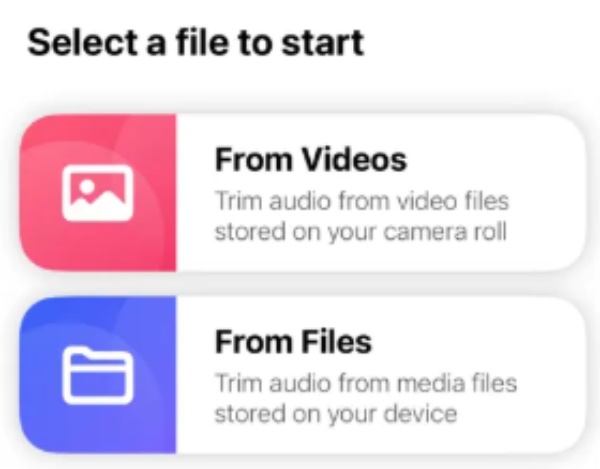
Step 2.In the main interface, tap the "From Files" button to select the audio file you want to trim from your iPhone.
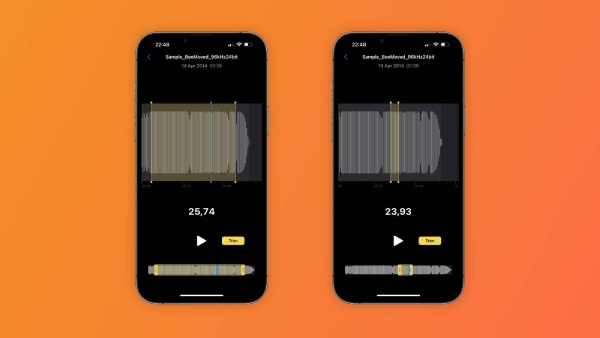
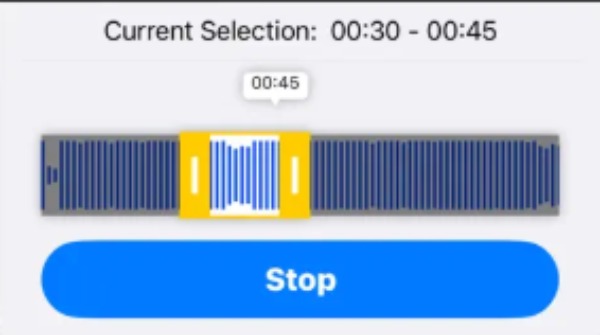
Step 3.Tap to adjust and select the part you want to keep. Finally, tap the "Stop" button to save the changes.
[For Android] An All-in-One App for Audio Trimming
For users who wish to trim MP3 files on their Android devices, there is also a similar app in your app store. And AudioLab is the one. Although unlocking all the features of this tool requires in-app purchases, the audio-cutting function is completely free. For those who want to trim the sound on TikTok, obtaining a license is recommended. You can follow these steps to get the audio clip you need quickly.
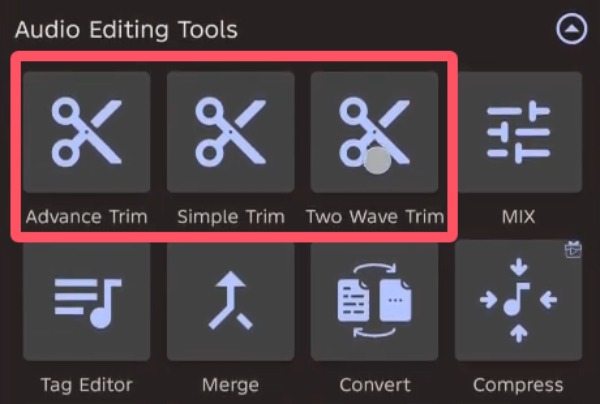
Step 1.After downloading and installing AudioLab, tap the "Advance Trim" button or another similar option based on your requirements.
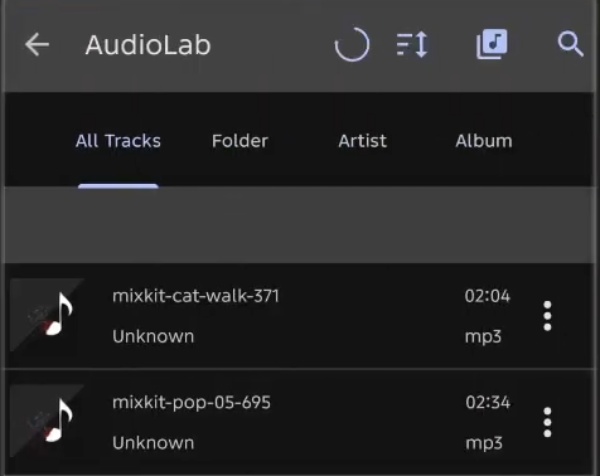
Step 2.A new window will pop up, and you can select the audio file to import.
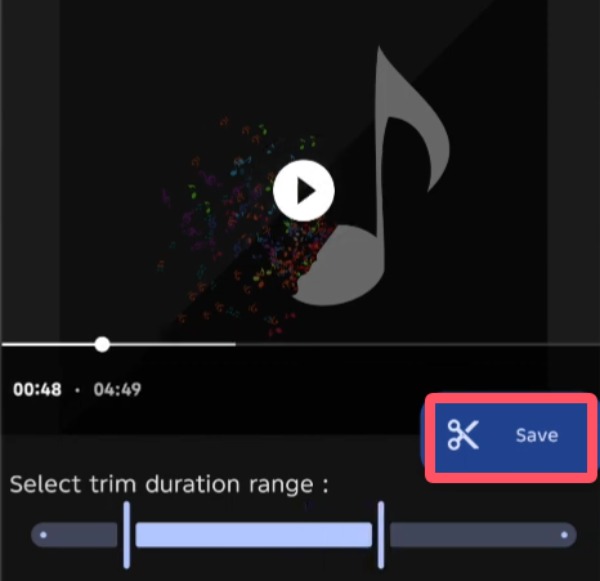
Step 3.Tap to adjust the duration of the audio trim. Finally, click the "Save" button.
Conclusion
This post introduces you to 7 different MP3 audio trimmers suitable for a range of devices and scenarios. You can choose the one that best suits your needs. Among them, if you want to complete the task quickly and professionally without sacrificing the quality of the original audio file, AnyRec Video Converter is the best choice.
Secure Download
Secure Download
Related Articles
About Our Author




